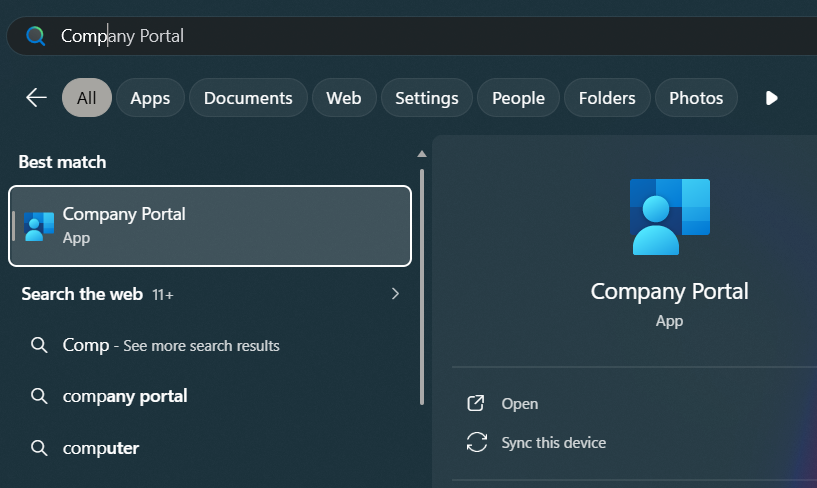
If you register to take the ACT on a weekend you will need to install the ACT Gateway application. You can
install ACT Gateway from the
Company Portal App on your computer.
If you register to take the ACT on a weekend you will need to install the ACT Gateway application. You
can install ACT Gateway from the
Company Portal App on your computer.
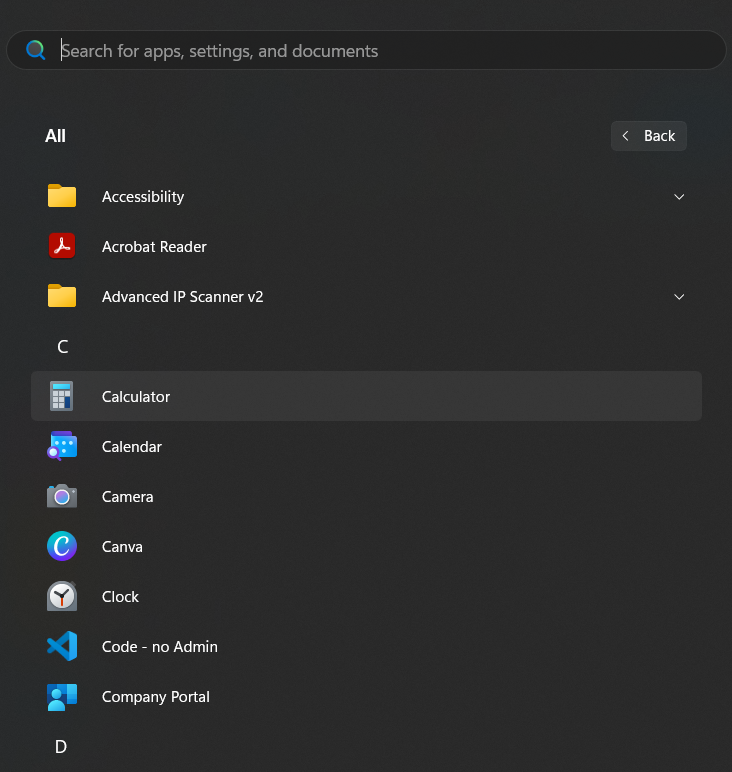
The Company Portal can be found under the Start Menu either by searching or alphabetically under All
Apps.
You must be logged in to the computer as yourself, not state.test.
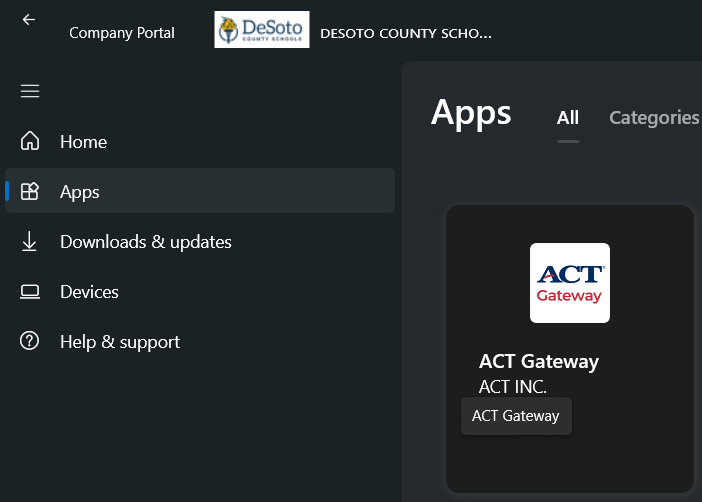
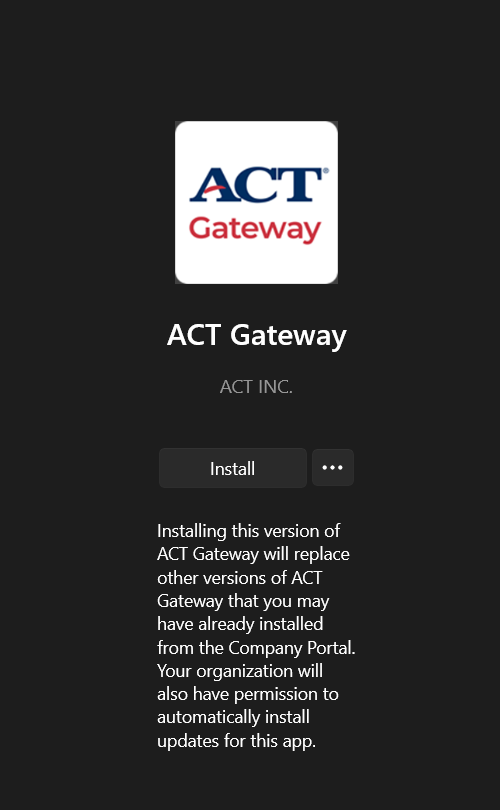
On the left bar is a tab named Apps. ACT Gateway should be the first app listed on the apps page. Select
the ACT Gateway tile, then click install.
Once the installation is finished the app can be found under the Start menu.
If you have issues with the installation, your device doesn't have the Company Portal app, or the Company
Portal app says,
"This device is already assigned to someone..."" please submit a Help Ticket with the Help Topic "Software
Installation Needed."
What happens to OneDrive files when someone leaves the district?
When employees leave the district, their Microsoft account is deactivated so the license can be used for
their replacement. This means the files they have in their OneDrive will no longer be accessible.
What happens to OneDrive files when someone leaves the district?
When employees leave the district, their Microsoft account is deactivated so the license can be used for
their replacement. This means the files they have
in their OneDrive will no longer be accessible.
The accounts of employees leaving the district will be deactivated on Sunday, June 8, 2025 at
midnight. (If you are teaching summer school or
ESY, it will be
at the end of summer school.) 30 days later, the assets associated with that account will be removed.
If you are planning to continue to use resources that have
been shared with you by a user who is leaving
the district, you must download a copy of those resources to add to your own OneDrive prior to July 8,
2025.
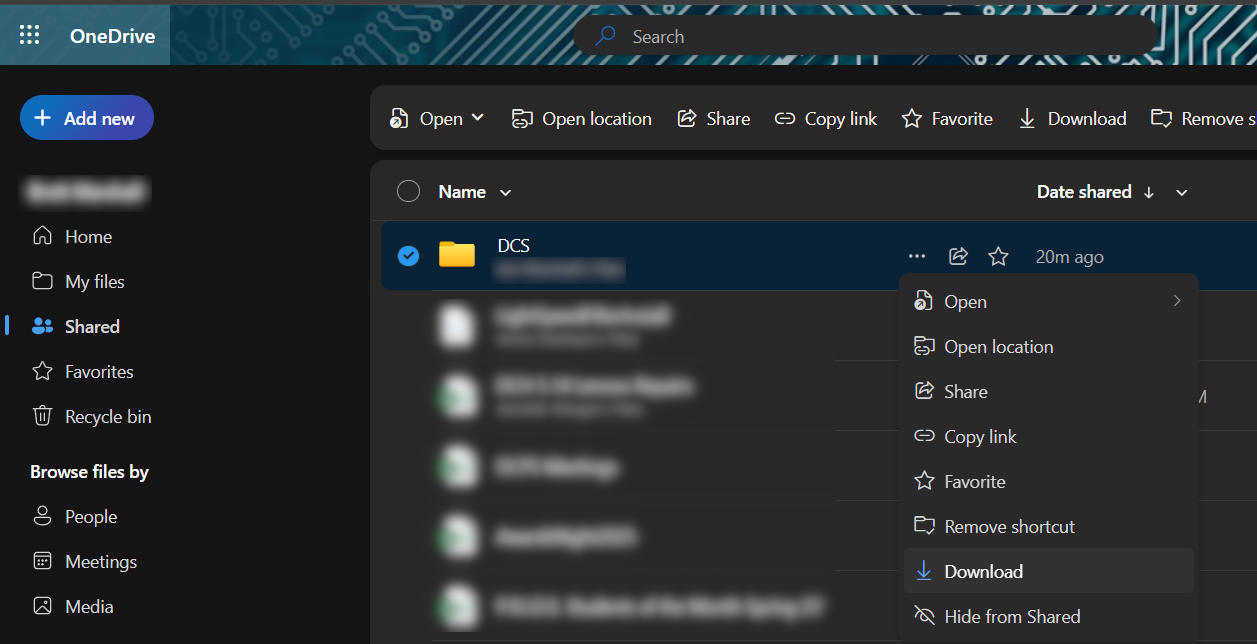
One way to do this is to go to OneDrive on the Web and click on the Shared folder in the left sidebar.
Click on the 3 dots at the end of the item name to 'show more actions for the item.' From that dropdown
list,
select Download.
Once you have downloaded the file or folder, add it to your own OneDrive.
Clever Login
Clever Login for all staff and students is now done through Microsoft single sign-on (SSO). This means that
you login to Clever using your DCS Microsoft account (your email address and password).
Clever Login for all staff and students is now done through Microsoft
single sign-on (SSO). This means that you login to Clever using your DCS Microsoft account (your email
address
and password).
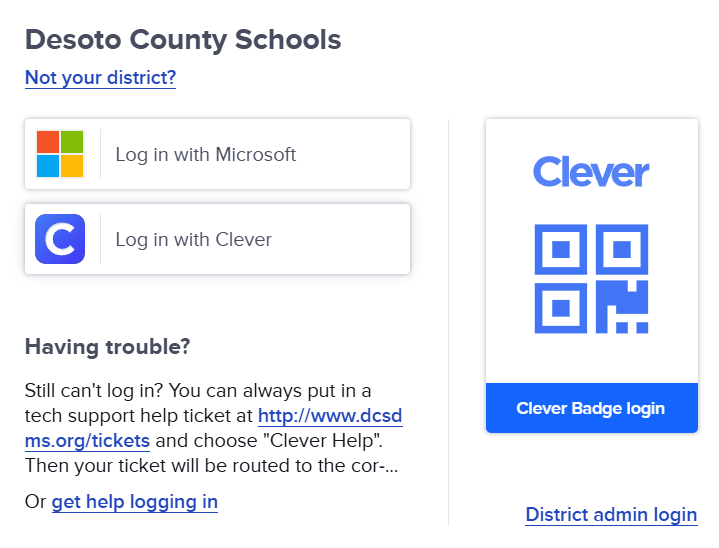
To log in to Clever click the "Log in with Microsoft" button and use your email address and email
password
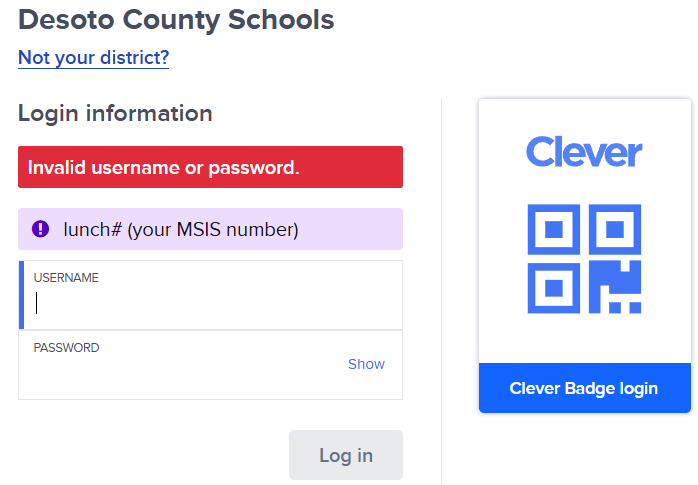
If you click "Log in with Clever" it returns this error message.
myQ - Print Management System
MyQ is a full-featured print management solution which offers the ability to scan directly to your One
Drive,
scan-to-email, and better reporting for administrators.
MyQ is a full-featured
print management solution which offers:
The ability to scan directly to your One Drive
Scan-to-email knows your email address, no digging through the address book
Better reporting for administrators
You can print from Google Chrome again like the good, old days!
and more...
Click here to
log in to the print server and authorize MyQ to scan to your One Drive. You only need to do this once and
you must be on our network to do it.
Student Password Reset
High school and middle school students' passwords will be the same as they were last school year. They are
not being reset to a common default.
High school and middle school students' passwords will be the same as they were last school year. They
are
not being reset to a common default.
Students who do not remember their passwords or whose passwords have expired can have them reset by
submitting a Tech
Help
Ticket.
They should select "Username / Password Issues" as the Help Topic and select the appropriate account
type.
If you have issues logging in to your computer with your DCS Microsoft account, let your tech
know the
exact message you get when you try to login. This will help them to identify the issue most
quickly.
Faculty: If you need to reset the password for your your DCS Microsoft / Office 365 account you
may do so
at
Office.com. Enter your email address, click Next, then click the Forgot Password link beneath the
password
field. Follow the directions to reset your password.
DCS Office 365 account
This account is used for Microsoft Single Sign On and is used to login to your school computer as well as
access a growing number of sites and services.
This account is used for Microsoft Single Sign On and is used to login to your school computer
as well as
access a growing number of sites and
services.
Once your password is changed in Office 365 it has been updated for computer login as well as
all of these
Single Sign On services.
How easy is it for a hacker to get your password?
Strong passwords help prevent unauthorized people from accessing files, programs, and other resources, and
should be difficult to guess or crack.
Strong passwords help prevent unauthorized people from accessing files, programs, and other
resources, and
should be difficult to guess or crack. A good password:
Is at least eight characters long
Doesn't contain your user name, real name, or company name
Doesn't contain a complete word
Is significantly different from previous passwords
Contains uppercase letters, lowercase letters, numbers, and symbols
This interesting chart shows how long it will take for a hacker to get your password.
Stay out of the purple and red at least.
One Drive Basics
One Drive is included with your Office 365 account. It provides up to 1GB of Cloud Storage for files and is
the recommended location for safe storage for all of your files.
One Drive is included with your Office 365 account. It provides up to 1GB of Cloud Storage for files and
is
the
recommended
location for safe storage for all of your files.
All DeSoto County Schools Middle and High School Students and DCS Employees have access to up to 5 free
installations of Microsoft Office for their personal devices.
All DeSoto County Schools Middle and High School Students and DCS Employees have access to up to 5 free
installations of Microsoft Office for their personal devices.
When you have logged in to your DCS Office365 account in your web browser, go to your
Office365
Home
Page
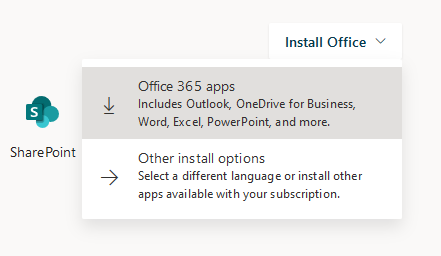
In the upper, right-hand corner, click "Install Office," then select "Office 365 apps"
from the drop-down.
This should immediately begin the download.
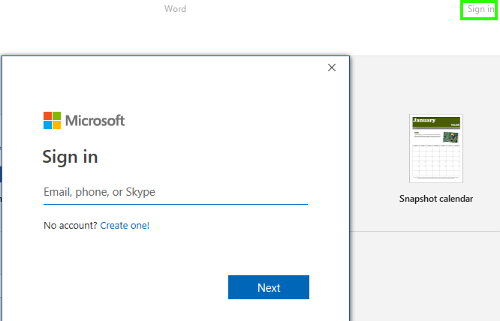
You do not need a license key. Once you run any of the Office apps, click "Sign
In" in the upper,
right-hand corner of the application and sign in with your DCS Office365
account.
This is where you will go to submit a ticket for almost every technology support issue. There are a variety
of
help topics in the drop-down menu on the ticket form. Selecting the correct help topic will ensure that your
ticket is addressed as quickly as possible. You do not need to know who to contact, all you need to do is
select
the issue closest to yours in the help topic drop-down list.
This page may be accessed from anywhere you have internet access.
Checking the Status of a Help Ticket
When you click the Submit button, you will get a page that shows your ticket number.
Save this ticket number. You can then log in to check the status of your ticket using the
ticket
number and your DCS Office365 email address.
To check the status of a ticket, go to Tech Help Tickets and select "Check Ticket Status." Enter your DCS email
address
and the ticket number,
then click View Ticket.
Accounts (General)
The DCS Technology Department maintains Mirosoft accounts for "DCS User / Computer" and "Office365 / Email"
for Staff and Students. These account credentials are used to access a growing variety of sites and
services.
Your password for
this account is used for all of these sites and services.
The Staff members may reset this password yourselves.
Students should submit a Tech Help Ticket to have
their
passwords reset.
Account Security
It is your responsibility to keep your account credentials secure to deter unauthorized access to your
accounts. Never provide your password in
response to an email request. No one should ever request your password. No one else should ever know it.
Your username is your "@dcsms.org" email address. You will use this username for all of these sites and
services." (Microsoft Single Sign On)
System Name
Faculty
Students
Computer log-in
Email address & password
Email address & password
Office 365
Email address & password
Email address & password
Clever
Email address & password
Email address & password
Schoology
Email address & password
Email address & password
DCS_RADIUS Wi-Fi *
Username & password
Faculty Only
Linewize web filter *
Username & password
Username & password
MyVideoSpot
Email address & password
Email address & password
Apptegy
Email address & password
Faculty only
Adobe Creative Cloud
Email address & password
Email address & password
* For DCS_RADIUS and Linewize login just use your simple Username; the part of your email address before
the
@.
Password Reset
Self-Service password reset is not enabled for students at this time.
Faculty
The first time you log in (and every time thereafter until you complete the recovery
configuration) you will be prompted to set a recovery cell phone number and / or alternate email
address. You cannot reset the password yourself until this is done. This does not apply to student accounts
at
this time.
If you have set up Multi-Factor Authentication on your Office365 account you can reset your password by
going
to
Office 365 Login,
entering your email address, and clicking
"Forgot my password."
Follow the instructions to reset the password"
For other accounts' passwords please submit a ticket, select
"Username / Password Issues" as the "Help Topic," and
select the appropriate "Account Type."
To change or reset your password:
If you can log in to your email:
Go to email and login with your computer password. Then go to your picture in the upper, right-hand corner,
click
it and go to "View Account."
From the Account overview, click "Change Password" on the Password tile. You can now change the password
for
Office 365, which will change your login for all of the above services.
If you cannot log in to your email:
Click the "Forgot my password" link on the login page after entering your email address. Then follow the
recovery
steps as you would for
any online account.
For assistance with login issues for either of these accounts (and their related sites and services above),
if
you have already reset your password,
please submit a Help Ticket. Select "Username / Password Issues"
from the "Help Topic" drop-down list and ensure that you select the appropriate
"Account Type" from the "Account Type" drop-down list.
DCS User / Computer Account
All staff, teachers, teacher assistants, and k-12th grade students have a DCS User / computer
account.
Once you have initially logged in to your account and set your own password, you may then use that password
you
set to log in to your teacher website, MYVRSpot, DCS_RADIUS wi-fi at campuses,
and other services.
You may use this account to log into any computer in the county. When you do so you will have access to
your
personal OneDrive (Windows only) as well as any resources deployed to you at your campus (shared folder,
printers,
etc.).
Everyone should log into computers as themselves for security and proper access to
resources.
You should
not let anyone else know your password for this account as you are responsible for anything done logged
in under this account. This is especially important since your DCS User / Computer account and
Office365 / Email account share a password.
This account is more than just access to school computers and the number of things for which it
is used continues to grow.
If you have issues using this login and have already reset your password, please submit a ticket.
Select "Username / Password Issues" from the Help Topic dropdown list and "Computer" as the account type.
All staff, teachers, teacher assistants, and k-12th grade students have an Office 365 account.
DeSoto County Schools provides you with an Office 365 account. In addition to Outlook for email, your
Office
365
account includes
OneDrive, Office Web Apps, Calendar, OneNote, Teams, and several other useful applications.
You must use your full email address (including the @dcsms.org) to log in to Office365
applications including
Outlook (email) and Teams.
If you have never logged in to Office 365, or you have received a password reset, you must
first login to Office365 in a web browser and set your own password. Only then can you use your newly set
password
to access your email
in a mail client such as Outlook on a mobile device app.
Your Office 365 account uses modern, multi-factor authentication and requires a device to be set up to
authorize
login requests.
MFA is not enabled for student accounts at this time.
Microsoft is in the process of deprecating SMS notifications for Office 365
authentication.
The current, recommended solution is to use the
Microsoft Authenticator App on your mobile phone.
If you have a brand new account, you will be prompted to set up Multi-Factor Authentication
on your initial login. For existing accounts, you can get to the settings to set up Authtenticator by
following
the below steps:
Click on your name in the upper, right-hand corner. In the popout window click on 'View
Account.' This will open your account settings.
Under 'Security Info' click 'Update Info.'
On the Security info page click 'Add Sign-In Method,' select 'Authenticator
App,' and click the Add button.
You will be walked through the steps to add your account to the Authentocator App.
These are also the options you will have for recovering your account. We recommend you check at
least
two
(2) different methods: i.e alternate email and phone number
You must use the Microsoft Outlook app for
Android or iOS to
get emails on your phone or tablet. The built-in mail apps in Android and iOS are no longer
supported.
What to do if you get a new phone or phone number
Logging in to your Office 365 account requires (MFA) Multi-Factor Authentication if you are not on our
network.
This security feature is in place to protect your Office 365 account from unauthorized access.
Therefore, it may be easiest to edit these settings from a device connected to your school network.
Adding or Removing an authentication device from your account:
On the Security Info overview page you will see the devices listed for the "Default sign-in method" for
your
account. Here is where you change authentication devices
and phone number when you get a new phone or change your phone number.
From the Account overview, click Security Info.
If you have a new phone, but the phone number has not changed:
If you receive a text message for authentication: You do not need to do anything. The phone number is
the
same, so the message will come to the new phone.
If you use the Microsoft Authenticator App: Install the Microsoft Authenticator App on the new device.
Go
to
Security Info. Add the new device. Remove the old device.
If you have a new phone and a new phone number:
If you receive a text message for authentication: Go to Security Info. Where your phone is listed, click
change and edit the number.
If you use the Microsoft Authenticator App: You must do both. Install Authenticator App. Add the new
device as
an auth method. Remove the old device. Change the phone number.
If you need further assistance, submit a help ticket. Select
"Office365 / MFA Training" from the "Help Topic" drop-down menu and provide the
requested information.
Student Accounts
All kindergarten through 12th grade students have both a DCS User account (for computer access, wifi
login, permissions
grouping, and more) and an Office 365 Account for email, One Drive, Teams access, etc. The student
accounts are
very similar to the faculty accounts for familiarity and interoperability.
Student usernames follow the format 'js234567@dcsms.org' - 2 letters and 6 numbers. The 2 letters are the
initials of their first and last
names and the 6 numbers are the last six digits of their lunch number for a total of 8
characters.
Example: If Amy King's lunch number is 1234567, her computer / email username is
ak234567, and her email address is ak234567@dcsms.org
Student passwords are their 6-digit birthdate in the format MMDDYY plus the school mascot.
Example: 030406Falcons
You must use your full email address (including the @dcsms.org) to log in to online
applications including
Schoology, Outlook (email), and most others.
Self-Service password reset is not enabled for students at this time. If you need assistance, please submit
a
help ticket. Select "Username / Password
Issues" from the Help Topic drop-down list and "Email/Office365" as the Account Type.
If a user has issues logging in to a school-managed, Windows computer, the error message on the screen
reveals
the reason for the failure. There are several
different messages and each has a different cause.
When users have issues logging in to a device they should submit a Help
Ticket. Include the exact message with the
Help Ticket to help the support team most quickly address your
need.
You
may include a photo of the error message. Do not paste it in the text box, select the image icon and upload
it.
Please refer to the chart below to assist you in selecting the appropriate Help Topic for your Help Ticket.
Login Message
Help Topic
The username or password is incorrect.
Username / Password Issues
Select Email / Office 365 as the account type.
The security database on the server does not have a computer account for this workstation trust
relationship.
Computer power / operational Issues
The trust relationship between this workstation and the primary domain failed.
Computer power / operational Issues
We can't sign you in with this credential because your domain isn't available. Make sure your device
is
connected to your organization's network and try again
....
Try simply connecting to DCS_RADIUS. If you are unable to connect, select Computer power /
operational Issues
Your account has been disabled. Please see your system administrator.
Computer power / operational Issues
One Drive & File Storage
Click here for an overview of One Drive features and usage.
Your computer should not be considered a safe place to store documents and data. In the
event of
catastrophic hard
drive failure, infection from a variety of malicious software (viruses, spyware, ransomware, etc.), or a
number of
other possible issues,
any data on the computer may be lost.
You've been provided one terabyte of cloud storage in the form of OneDrive with your Office 365 / email
account.
This is the
appropriate place to save and access any important documents and data you may need.
This is Secure Storage for your own personal information and by default anyting saved there is accessible
only by
you. You may
control the permissions and sharing settings on individual files and folders to allow others to access, view
only,
or edit items
stored in your OneDrive.
Known Folder Sync for the following folders is enabled for you:
Desktop
Documents
Pictures
Saving files in any of these three locations automatically syncs them to your One Drive, so they are
backed
up
for you.
Saving to any other folders (Downloads, Music, Videos, etc.) will not automatically back up.
Backing Up Files from your Mac to One Drive
One Drive Tips
Rather than attaching copies of files to emails, you may send links to share documents in your OneDrive
allowing multiple people
access to view and or edit the same document. This has the benefit of allowing you one location to make
changes
to said document which
would then be accessible by everyone with whom you have shared the link. Additionally, this is a way to
share
files which are too large
to be attached to an email.
How To Use Finishing Options on a Kyocera TASKalfa Copier
Open a multi-page document
Click File > Print
In the Printer Name drop down, select a copier with finishing capabilities
Click properties
Click the Finishing tab
Check Staple or 3 Hole Punch
Click OK
Click Print
For more information on using OneDrive Microsoft has a selection of very short and concise videos:
One Drive
Training
Wi-Fi Access
You should not need to do anything to connect to Wi-Fi from your assigned DCS device. The Wi-Fi
authentication should be deployed to your device through our management system.
If this is not the case, your device may not be communicating properly with the
management
system.
If you have just received the device, restart the computer and log in with your DCS User account.
Allow a half hour or so for the policies to synchronize and for everything to update. Then restart
the computer and log in once more.
From a device you own that is not managed by DeSoto County
Schools
To login to the Wifi from a personal or unmanaged wireless device (anything that doesn't automatically
connect):
Select the DCS_Radius network.
Login using the username and password for your DCS User Account (computer login). This is the short form
of
your DCS User account name, which is your email address without the "@dcsms.org."
There is no simple passphrase for wifi access. You must use a username and password.
This is one reason personal printers cannot be connected to our wifi.
If you have trouble logging in to wifi, "forget" the connection in your wifi settings, then login.
IMPORTANT
For Android versions 11 and higher: You cannot select "CA Certificate: Don't Validate or Do Not Check"
(It
will say "CA Certificate must be selected."). You must download the DCS_Radius Certificate below, install
it, and select that certificate under this CA Certificate section. Then select "Trust on first use."
This certificate should not be needed on a school-assigned device. The certificate is made available here
for
instances in which it is needed on a personal device.
Installing the DCS_Radius Certificate (Android 11 and higher, Amazon Fire, etc.)
Download the DCS_Radius Certificate above.
The certificate cannot be installed by simply opening it. It must be installed from the system Settings.
Go to Settings and search for the word certificates, then select "Install Network Certificates." At the
bottom of that list, select "Install Network Certificates" again and navigate to the dcsradiusca.crt file
you downloaded (probably in your Downloads folder). Select that item and press Done.
Name the certificate whatever you like. DCS Radius is fine. It will say "Wi-Fi certificate installed."
Now you may go back to Wi-Fi networks, connect to DCS_RADIUS, and select the file you just named under
the
CA Certificate option.
Network settings for Android
Install the above DCS_RADIUS certificate and use the following settings:
You must disable randomized MAC addresses
SSID: DCS_RADIUS
Security: 802.1x EAP
EAP Method: PEAP
Phase 2 Authentication: MSCHAPV2 (may be under Advanced)
CA Certificate: Don't Validate or Do Not Check
Identity: your.username
Anonymous Identity: make sure this is empty. May need to remove "anonymous"
Password: your account password
Domain: dcsms.org
MAC Address Type: Phone MAC (not Randomized MAC)
Linewize Internet Filter Authentication
Our Web Filter service has changed from Lightspeed to Linewize
Assigned student and faculty laptops are managed by the DCS Technology Department and should associate
the
logged in user with the Web Filter by default.
If you are using a personal or other non-managed device, (cell phone, personal tablet, personal laptop,
etc.)
you may have
issues accessing web content. You can log into the Web Filter portal so the filter knows who you are and
can
allow the
appropriate content for your access level.
To do so, go to Web
Filter Login
(there is also a link in the Quick Links section above, or hamburger menu on a mobile device).
Password Requirements
There are minimum requirements for password complexity which must be met when creating passwords. These are
requirements for most
systems, including DCS User Account (computer login) and Office365 (email). They are as follows:
Minimum of 8 characters
Must have 3 of the 4:
Uppercase letters
Lowercase letters
Numerals
Symbols
Cannot contain part of your Name, username, birthdate, lunch number, or school mascot
Cannot be any of your previous 3 passwords
Printers
DeSoto County Schools provides printers and copiers through an exclusive contract with
Logista. The provided printers and copiers are owned by Logista and they are responsible
for the maintenance of these devices. If you have issues with the copiers or printers,
please use the phone number or email address on the Logista label on the printer to submit
a work order to have a Logista technician sent out.
How to set your default printer
Most printers are assigned to users and specific computers by your administrator. You should
have access to the printers assigned to you when you log in to any DCS PC at any campus.
Follow the steps below on Windows 10 computers.
Click the start button - bottom left on the desktop
Type "Printer"
Locate and open "Printers and Scanners"
Scroll to the bottom of page:
Uncheck "Let Windows Manage my default printer"
Scroll up and under "Printer and Scanners" click on the printer you'd like make the default.
After locating the printer you'd like to make default, click on Manage.
Choose "Set as Default"
The selected printer should now show up as the default choice in print dialogs. (Note: some
applications
allow
for overriding this choice.)
Managing / Releasing Print Jobs
Printing has long been one of our highest expenditures. We have systems in place to help mitigate those
expenses and be as
efficient as possible with supplies.
One such system is the print management currently implemented through Print Audit. Print jobs from your PC
are
sent to a
print server and queued for printing on your available devices. The job is not printed until you go to the
copier and release
it using your PIN (Your PIN is the same as your Kronos ID you use at the time clock).
Once you send your print job to a copier, you may release the print job on any copier. It
does
not have to
be the machine to which you sent it. If there are 3 copiers in a workroom and you send a print job to copier
#1,
you may release
it on copier #1, #2, or #3. In fact, it does not have to be a copier in that room. Any copier on our
network can be used
to releasae a print job sent to any other copier. If you have a copier installed for your school,
but
are at a different
school, you can send the print job to the one you have installed and release it from the copier at your
current
location.
These features are not available from Mac OS X.
There are various benefits to this system including:
Secure printing - Your print job does not print until you are there to retrieve it. Printed documents do
not
sit
in the output and cannot be viewed or moved by anyone else.
Reduced waste - Documents are not printed until you are physically there to retrieve them. No more
stacks
of
hundreds of
sheets of
printouts sitting on the device which will never be picked up.
Consolidated printing - If you need to print multiple different documents you can do so from your
computer
and then relese
them all at once. Additionally, if you decide you do not need one or more of those print jobs, you can
simply
elect to not release
it. This can save paper and the unreleased print job will simply be removed from memory afer a few days.
Redundant options - Let's say you have 3 copiers in a workroom and you print your job to copier #1. You
get
to the workroom
and see that
copier #1 is not working. No problem. You can then elect to release the print job from any other copier in
that room.
Accountability - These printing and duplication devices are provided for you to help you get your job
done.
Nonetheless,
there may be times these
resources are abused. Administrators can review unusual usage patterns and address issues with specific
users.
This helps to
prevent blanket restrictions on everyone due to the actions of one or a few.
Personal Printers
Printers not provided by DeSoto County Schools through Logista are not officially supported.
The printing system provided through Logista allows us to save money on printing costs, materials,
supplies, and maintenance time. One way this is achieved is in time saved by computer techs not having to
troubleshoot
a wide variety of consumer-grade printers. These home / consumer-grade printers often have no
serviceable parts anyway. Your computer tech may install the printer drivers for you at their
convenience. Other issues which computer techs must address will take precidence over personal
printer installation.
Personal printers may not be connected to our network. They must be connected to your computer
via USB. Not all printers come with a USB cable, so you may need to purchase a cable in order
to use the device.
How To Use Finishing Options on a Kyocera TASKalfa Copier
Open a multi-page document
Click File > Print
In the Printer Name drop down, select a copier with finishing capabilities
Click properties
Click the Finishing tab
Check Staple or 3 Hole Punch
Click OK
Click Print
FAQ
Q: Why can't I login to my account (Office365, Email, Schoology, etc.)
A: The most likely answer is that you are not using your complete email address as your
user
name. If this is not the case, please
submit a Tech Help Ticket. Select Username /
Password
Issues
as the Help Topic and select the
appropriate Account Type ("Email/Office365").
A: Please submit a Tech Help
Ticket.
Select
"Schoology Help Needed" as the Help Topic
and complete the form.
Q: What if I cannot log into my email and I am
using
my
full email address?
A: Try clicking the "Forgot my password" link beneath the password field. Otherwise,
please
submit a Tech Help Ticket. Select
"Username / Password Issues" as the Help Topic.
Select "Email/Office365" as the Account Type, then complete the form.
Q: Why can I not connect to the school WI-Fi on my personal device?
Connecting to the wi-fi is only one step in accessing content. To have proper access you will also need
to
authenticate with the Linewize web filter.
Go to my.linewize.net and
sign
in
with your credentials to get proper access.
Please check here for settings for specific devices, instructions
on
installing the certificate, and other Wi-Fi related information.
For Android and Chromebook devices pay special attention to the "EAP Method," "Phase 2 Authentication,"
and
"CA
Certificate" settings.
Q:
What's the deal with Chrome Extensions?
A:
Chrome Extensions are applications that run within the Google Chrome web browser. They are a favorite
target
of
hackers since they are somewhat "hidden" within Chrome. Additionally, each extension runs as its own
process
"sandboxed"
in Chrome. This is very resource intensive as each extension is another application constantly running in
the
background.
We deploy the "Paper" extension to each computer in the district. The following extensions are available
for
each
user to
install on their own machine, if needed. Each extension you install will take up useful memory
on
your
computer, so only
install what you need.